
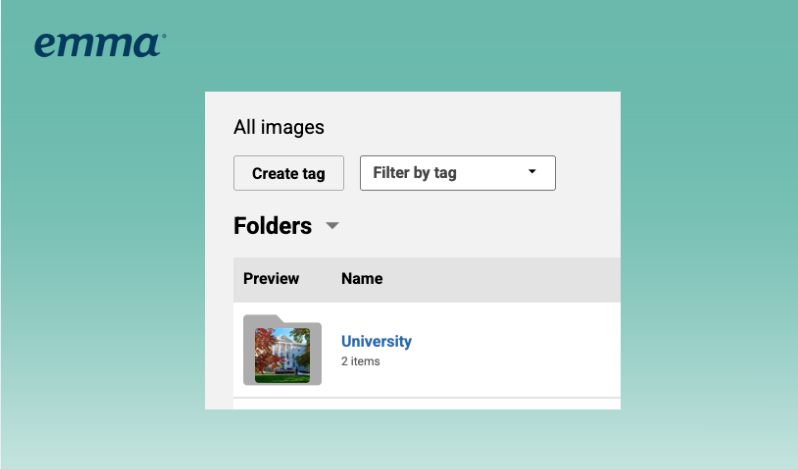
We added folders to the Image and Document Libraries. If your library has grown into one long list, this should make finding things a lot faster.
From the parent account, go to Brand Manager > Images and Brand Manager > Documents. Both pages now show two sections: Folders, and your images or documents. Create a folder, move existing assets in, and view either as blocks or a list. You can also rename a file without re-uploading it, delete in bulk, and upload several files at once.
Sharing works at the folder level. Share a folder with your subaccounts and every asset inside it goes along, so you’re not sharing file by file. Folders are Private until you share them, and anything you move out of a shared folder goes back to Private.
A few things worth knowing:
See how Emma helps you create, optimize, and send email campaigns with confidence.