
You’ve spent the last hour painstakingly creating your email campaign, and it looks perfect in the preview. You hit send, then check your inbox on your iPhone to see how it landed. The hero image is still loading. You switch to your work PC—half the images are broken. Now, you’re anxiously wondering if anyone will see what you built.
Figuring out the best image file size for email shouldn’t feel like an unsolvable puzzle. Three factors are most influential—file weight, dimensions, and format. Get these right, and your campaigns will load quickly, render cleanly, and reach recipients’ inboxes without issues.
Why image file size matters more than you might think
Image file size affects your email performance in three important ways:
- Load times on mobile: Heavy images slow load times, and slow-loading emails usually go unread—especially on mobile. When someone opens your campaign on their phone while waiting in line or commuting, a few extra seconds of load time can be enough for them to move on before they’ve absorbed any information.
- Deliverability and spam filters: Oversized email file size can trigger spam filters. While no universal threshold guarantees email deliverability, keeping your total email file size under control reduces the risk of getting flagged or clipped before your subscribers see it.
- Image-blocking behavior: Many subscribers—especially those using Outlook on Windows or PC, which is common in B2B environments—have images disabled by default. The moment they choose to enable images, you want your campaign to appear quickly.
The recommended file size for email images
File size, measured in KB or MB, is how much data the file contains. Image dimensions, measured in pixels, are how wide or tall the image appears. They’re two separate specs, and both matter for email performance.
A practical target for most email images is between 50 and 150KB each. Individual images can be slightly larger if necessary, but keeping them within this range lets your email load quickly without sacrificing noticeable quality.
For your total email image weight, aim to keep everything under 1MB. Gmail starts clipping email content when the HTML payload reaches about 102KB. Subscribers may see a truncated version with a “view entire message” link instead of your full campaign. Keeping image weight low and HTML clean helps your email load quickly while reducing the risk of clipping.
With image size for email newsletters, you’ll usually deal with dimensions and file weight. For file weight, Gmail’s 25MB attachment limit is not the right target. Campaign images should be much smaller, with individual images ideally around 50 to 150KB and the combined image file size under 1MB when possible.
A 400KB image might look a little bit sharper than a 100KB version when you compare them side by side on a desktop monitor, but the visual difference will be invisible to your subscribers in most email contexts. However, the load time difference on mobile is not. Use compression tools to reduce file size without causing visible quality loss.
Email image dimensions
The standard email width is 600px—this has been the safe zone for years across Gmail, Outlook on PC, Apple Mail, and iPhone. If you design your email layout around the 600px standard, your images will render cleanly across nearly every major email client without breaking or forcing horizontal scrolling.
For retina and high-DPI screens—which includes most modern iPhones, Macs, and newer PC monitors—design your images at 1200px wide, then export them at 600px. Designing at double the size gives you extra pixel detail, and scaling down at export keeps the file size small. The result is a crisp, sharp image that loads quickly but still looks great on high‑resolution displays.
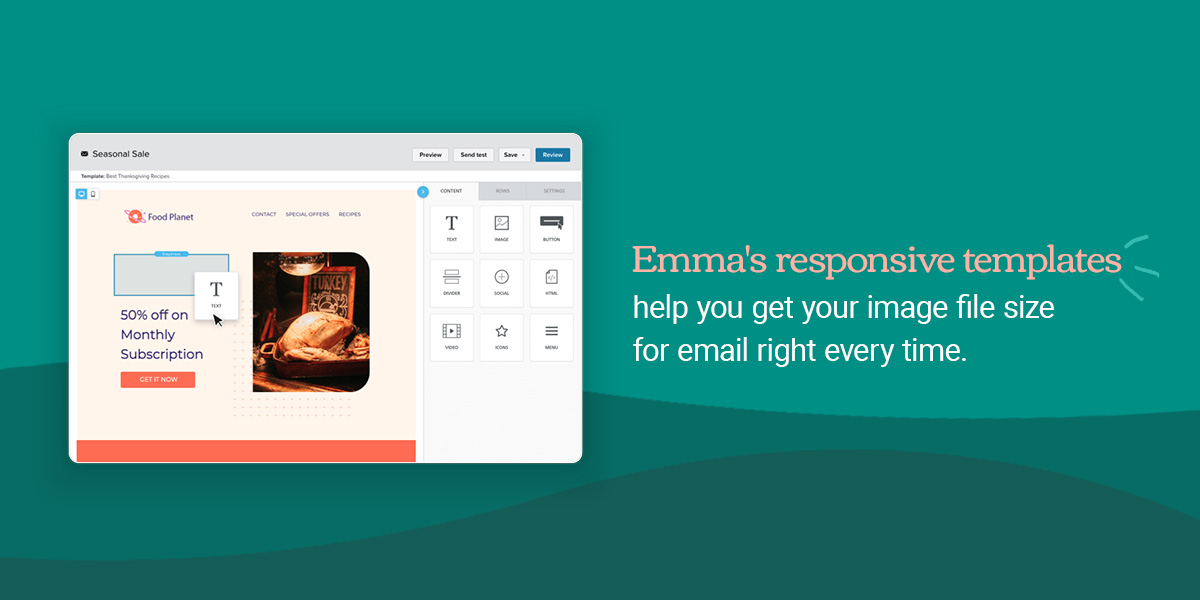
The best email marketing platforms have responsive email templates that automatically handle width constraints, but it’s still helpful to know the specs when designing graphics.
- Content images: These should be 480px wide or smaller for optimal rendering.
- Header graphics: These typically measure 600 to 700px wide and 100 to 200px tall.
Width drives rendering consistency across email clients, so that’s the dimension to pay attention to. While there’s no universal height standard like there is for width, it’s a best practice to avoid tall, narrow images. They can behave unpredictably across different inboxes and create awkward scrolling experiences on mobile.
Choosing the right file format
The three formats that work reliably across email clients are JPEG, PNG, and GIF. WebP is gaining support across the web, but Outlook on Windows—still common in B2B and corporate environments—doesn’t render WebP images reliably. Until support is universal, JPEG and PNG remain the safe call for email.
When to use JPEG
JPEG works best for photographs, product shots, and complex images with lots of color. JPEGs use lossy compression, which means they reduce file size by discarding some image data. In photos, that quality drop is usually invisible—you won’t notice the difference between the original and the compressed version. That’s what makes JPEG so efficient for email image size.
JPEG doesn’t support transparency, though. If your image has a transparent background—like a logo you want to float cleanly over a colored email section—JPEG will render those transparent areas as white. For anything with transparency, use PNG instead.
When to use PNG
PNG is ideal for logos, graphics, illustrations, and any image with text baked in. PNGs are lossless, which means they preserve every pixel. Edges and text stay crisp, without the compression blur that can occur with heavily compressed JPEGs.
PNG also supports transparency, making it the best image format for email when you’re placing a logo or graphic over a colored background. The transparent areas stay transparent, so your design looks clean.
The trade-off is file size. PNGs are larger than JPEGs. For photographs, that extra size isn’t worth it—the visual benefit is negligible compared to the load time cost. Use JPEG for photos, PNG for graphics and logos.
When to use GIF
GIF works well for simple animations with flat colors, product showcases that show multiple views, or adding visual movement to a static email. GIFs loop automatically and work in most inboxes.
Since Outlook on Windows only renders the first frame of a GIF as a static image, you should design your GIF so the first frame communicates your message on its own. Don’t bury your call to action in a later frame that Outlook users will never see.
Keep animated GIFs under 1MB where possible. Large GIFs can quickly inflate your total email file size, and a single heavy GIF can push your campaign over the 1MB threshold on its own.
Since GIFs have a limit of 256 colors, they can make photos look grainy and low-quality. Always use JPEGs for photos.
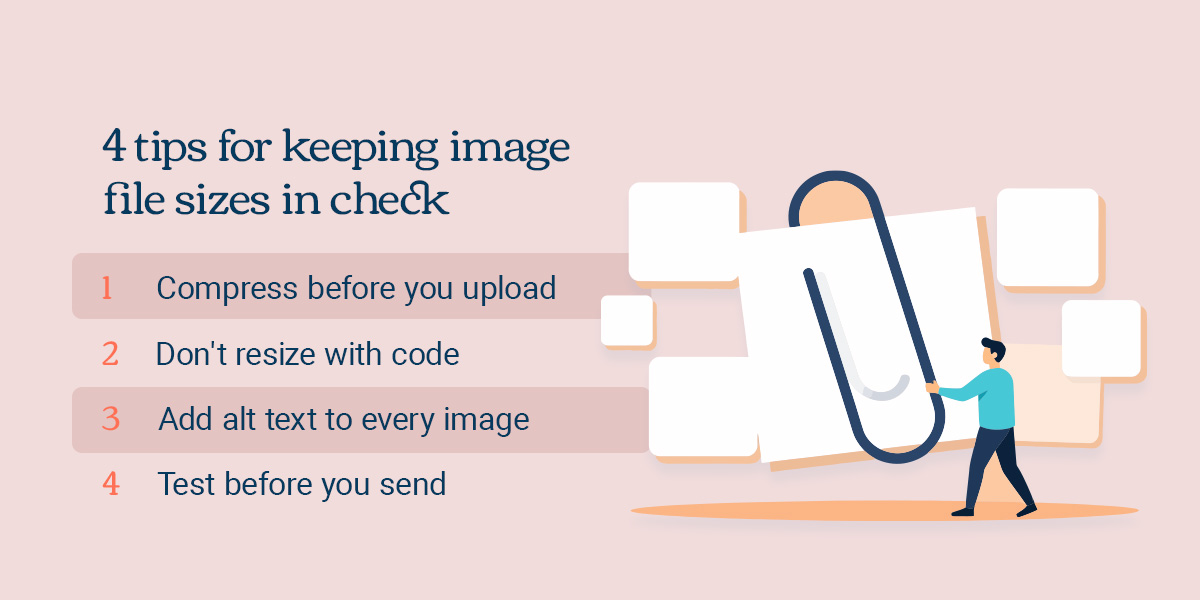
4 tips for keeping image file sizes in check
Try these four practical ways to keep your image file sizes manageable without adding extra steps to your workflow.
1. Compress before you upload
Image optimization tools like Tinify, Google’s Squoosh app, and ShortPixel image compression can reduce file sizes without losing quality. Make compression a standard part of your workflow—before you upload an image to your email editor, run it through a compression tool.
2. Don’t resize with code
If you upload a 2,000px-wide photo and use HTML or CSS to tell it to display it at 600px, most inboxes will still download the entire 2,000px file. The only way to reduce what your subscribers download is to resize the image using Photoshop or similar software, then upload the smaller version. Resizing with code doesn’t save bandwidth or improve load times.
3. Add alt text to every image
Outlook on PC blocks images by default for many senders, which means many of your subscribers will see alt text first. Make it descriptive and useful. “Spring campaign hero—shop new arrivals” is more helpful than “image1.” Alt text is also what screen readers read aloud for visually impaired subscribers, so clear, descriptive alt text makes your campaigns more accessible.
4. Test before you send
Preview your emails across every major client—Gmail, Outlook on PC, and Apple Mail on iPhone and desktop—before your campaign goes out. Rendering issues are much easier to fix before sending than after. A quick test catches broken images, formatting problems, and any other concerns while you still have time to adjust.
Getting your email image sizes right might feel like a small detail, but it shapes how your emails perform across every inbox. When images load quickly, render cleanly, and reach subscribers without triggering filters, your campaigns will work the way you built them.
Emma’s responsive templates help you get your image file size for email right every time.
FAQs
Discover even more helpful information on email image file sizes:
What is the maximum file size, in KB or MB, for images used in an email?
Aim to keep individual image files under 200 KB. A typical maximum size limit is 1 MB, but aiming for 200 KB helps ensure your emails load quickly for recipients, regardless of device or internet speed. While email platforms can handle a range of file sizes, you can use these general guidelines for file sizes:
- 10-50 KB for brand logos and icons
- 50-100 KB for standard content images
- Under 500 KB of animated GIFs
How many images should I include in a single email campaign?
Try to shoot for an 80/20 text-to-image ratio. Being within this range supports strong deliverability and engaging content. Having too many images, especially large ones, can slow load times and potentially trigger spam filters.
How can I optimize email images for mobile devices?
Start by using responsive design principles so your images adapt to smaller screens. Keep images under 200 KB where possible to prevent slow loading on mobile data. You should also make sure you’re using appropriate formats, like JPEGs for photos and PNGs for graphics.
How should I test email images before sending a campaign?
Use your email platform’s preview features to see how images render across different devices and email clients. Check for proper sizing, clarity, and loading speed during testing. Some of your recipients may have images turned off, so having strong and descriptive alt text is also important. Taking the time to preview your emails can help you spot last-minute issues, helping you maintain a consistent, professional campaign.